
Repository View
Clicking the entry of a repository in the Repositories view takes you to a detail page with several options to open comparisons for that repository. There are 3 main areas in this view: Current Status, Recent Comparisons, and Commit History, described below. And there's also a toolbar at the top, also discussed here.
Current Status
This area primarily offers two bits of information:

It shows the current Git ref, likely the name of the current branch in the header.
Below that, you see either that there are no Working Copy Changes, or a row indicating the number of changes:

Double-click that entry to open a changeset with those changes. If some of the changes are staged and others unstaged, you can also pick which ones to show using the segments on the right. By default, all changes are shown.
Recent Comparisons
As you open comparisons, either from this view, from other areas inside Kaleidoscope, from other apps, or the git command line tools, they appear automatically in this recent comparisons section. Note that they will also show up in the main Recent Documents, but this area only shows recent documents related to that repository, helping you focus on your task.
Use right-click or control-click to show the contextual menu which offers additional options, such as inverting and opening or editing and opening the changeset, if applicable. There's also the option to remove an entry from the recent comparisons.
Commit History
The area occupying the largest part of this view is a list of Recent Commits from your repository. It shows commits from your current branch by default, and it is sorted in reverse chronological order.
Use the popup button in the header to select any ref in your repository and see the history starting from there.
Each entry in the list represents a commit, shows lots of relevant information and offers several options to interact.
Toolbar
We will describe the toolbar from right to left, as the rightmost entry relates to the Commit History:
Search in Commit List / Select Commits in List
The search field has two nice tricks to offer: either filtering the list or selecting commits in the history. Why do need both? Sometimes you want to only see certain commits, like ones referencing a specific ticket, so Filter List is the right choice. At other times you may want to see all commits by a specific author, but in context with all the other commits. For that scenario, choose Select in List.
Custom Comparison
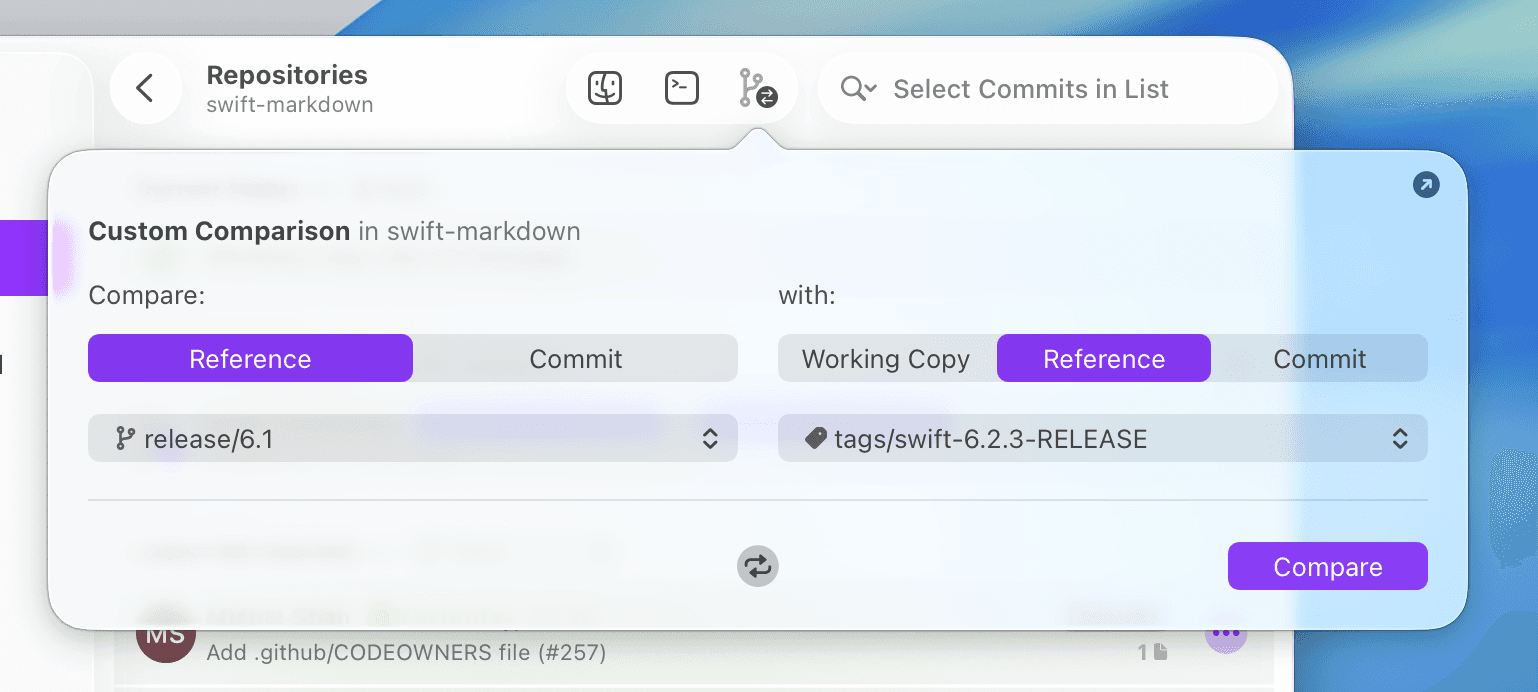
Use the Custom Comparison popover to compare feature branches before finishing your work on a feature, to explore changes in previous releases, and more. The commit option is mostly useful when pasting commit (short) hashes from other areas of Kaleidoscope or other apps.
Note that you can detach this popover and have it stay open, either by dragging it or by clicking the button in the top right.
Open in Terminal App
Click this button to open the working directory of the repository in your Terminal app of choice (See Settings > General).
Reveal in Finder
Finally, as expected, this button opens the working directory of the repository in Finder.


